This site imports a student spreadsheet and produces printable PDFs of stickers using your chosen barcode format (DataMatrix, QR, Aztec, PDF417, Code 128, MicroQR) and Avery sheet layout, sorted and filtered the ways you choose.
- DataMatrix is the preferred code option if your scanner supports 2D barcodes.
- Use Code 128 if you have a 1D linear scanner.
Need help? Email support@neilwallace.com.au or call +61 3 9017 1640.
This system is provided free of charge, as-is and as-available, with no warranty (including fitness for any particular purpose) or uptime guarantees. Barcode formats other than Data Matrix and Code 128 are for general interest experimentation rather than race day use.
- Student Code
- First Name
- Surname
- Homegroup (optional)
- Year Level (optional)
- Date of Birth
- House/Team
- Gender
Runners are issued with ID tags/stickers before they start the race. At the finish line these are numbered consecutively (with a texta) and passed to recorders.
- Option A: place stickers on a large sheet of paper in ascending order (to act as the source of truth).
- Option B: place tags on spikes in arrival order, scanning as each tag is collected.
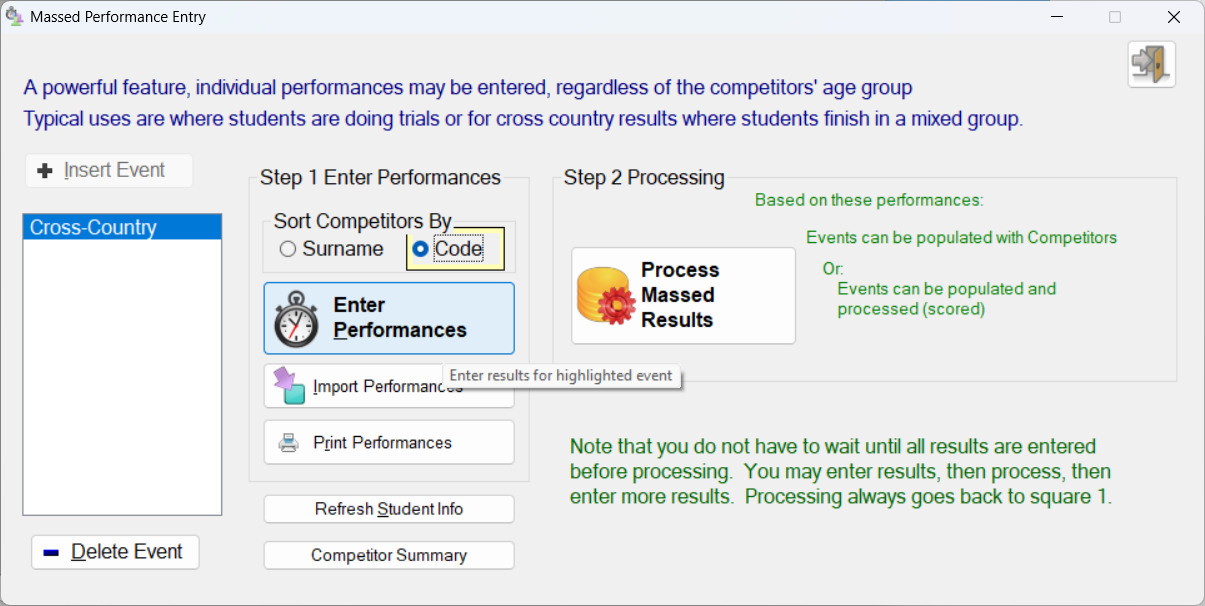
- Use the Massed Performance Entry button, then sort Competitors by Code, then click Enter Performances.
- At the top of the next screen choose to update competitors Place Only.
- Scan Competitor ID’s in arrival order.
- After each scan the scanned student will appear. Press Enter if it’s the correct student and Escape if not. If you need to press Escape, use manual typing to locate the correct student, and check that you chose Sort Competitors by Code in the SportsTrak Massed Results window.
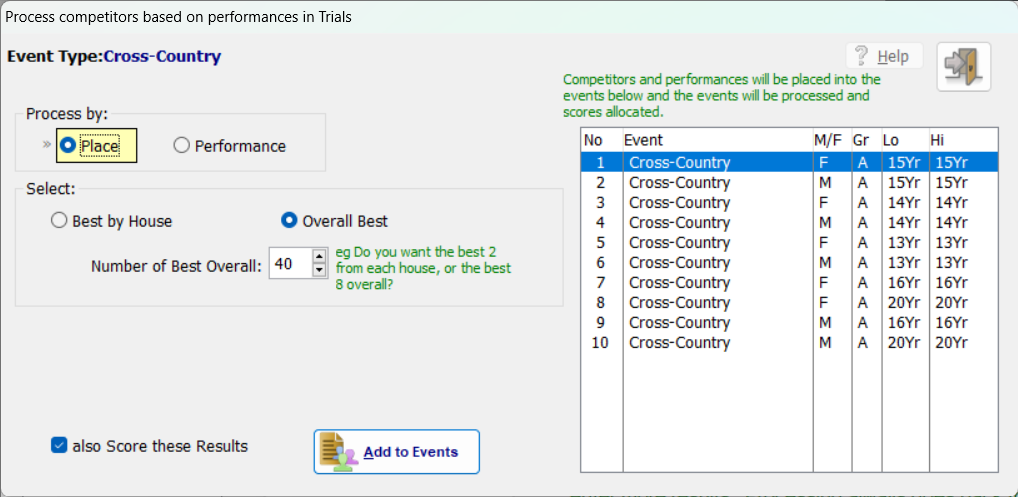
- After entering results, use the Process Massed Results button to allocate places and points to the correct Events/Age Groups. Be sure to Process by Place, unless you previously entered times as well.